
WhatsApp CRM Integration: How to Connect WhatsApp Business API With Your CRM
How to integrate WhatsApp with your CRM using the WhatsApp Business Platform: use cases, templates, the 24-hour window, per-message pricing, opt-in rules, and setup steps.
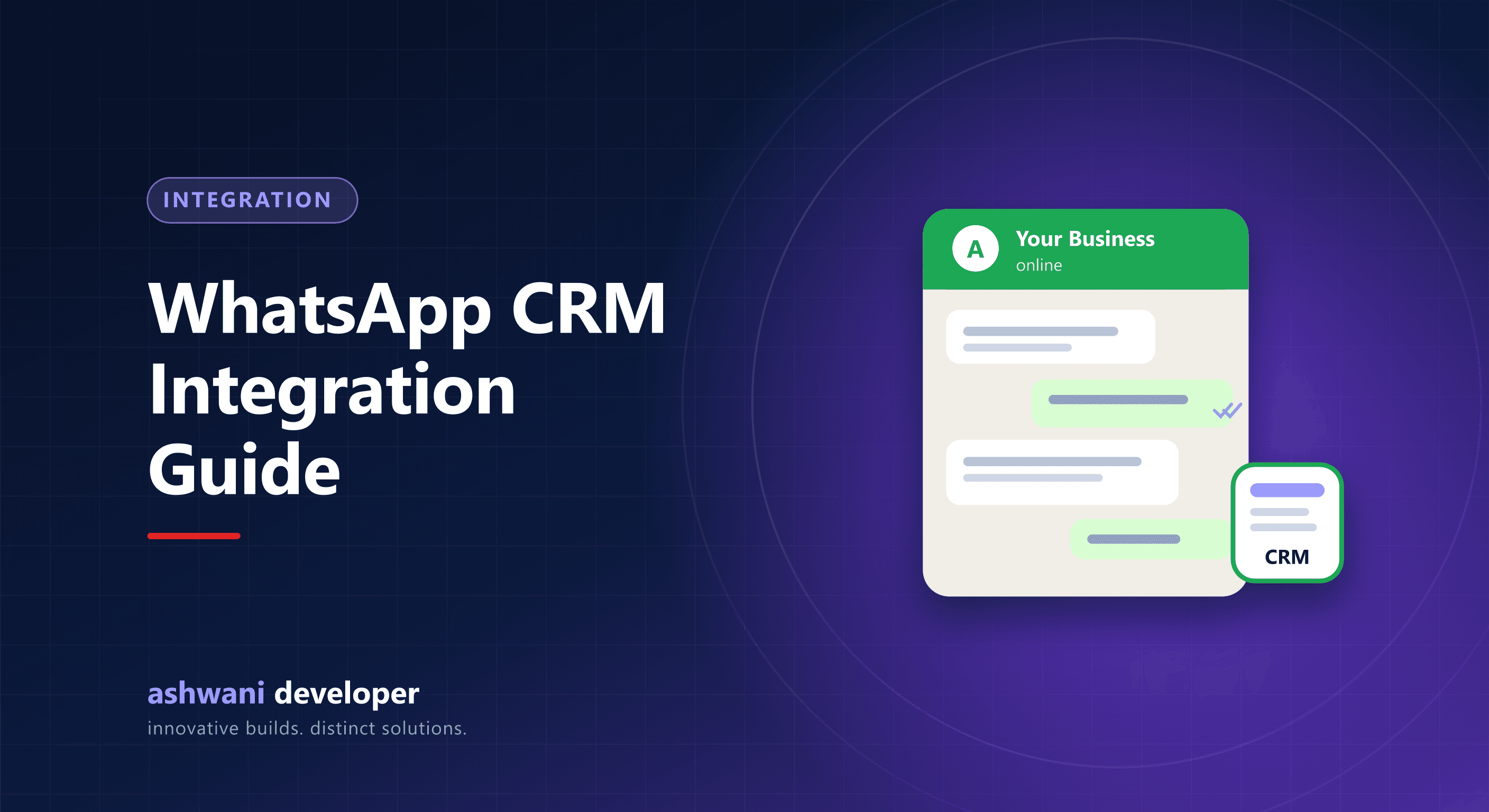
Quick answer: connect your CRM to the WhatsApp Business Platform (Cloud API) through Meta directly or an approved provider. Use pre-approved template messages to start conversations and free-form replies within the 24-hour customer service window. Log every message against the lead or customer record and automate sends from CRM events.
For many Indian businesses, WhatsApp is where customers actually reply. Connecting it to your CRM means messages are sent automatically at the right moment, every conversation is recorded, and your team stops using personal phones for business chats.
WhatsApp Business app vs Business Platform (API)
| WhatsApp Business app | WhatsApp Business Platform (API) | |
|---|---|---|
| Users | One phone plus linked devices | Many agents, integrated systems |
| Automation | Basic quick replies and greetings | Full automation from your software |
| CRM integration | Not really | Yes, via API and webhooks |
| Cost | Free app | Charged per message by category |
How the platform works
Template messages
To message someone outside an active conversation, you use a template approved by Meta. Templates fall into categories such as marketing, utility (order updates, reminders), and authentication (OTPs).
The 24-hour customer service window
When a customer messages you, a 24-hour window opens in which your team can reply freely. Replies within this window are not charged as template messages.
Pricing
Since July 2025, Meta charges per delivered template message, with rates depending on category and the recipient's country. Marketing messages cost the most; utility and authentication messages cost less. Rates change periodically, so check Meta's current pricing for India before budgeting.
Opt-in and quality
You must have the customer's permission to message them, and low-quality or spammy messaging can reduce your sending limits or get the number restricted. Make opting out easy.
High-value CRM use cases
- Instant lead acknowledgement when a website or ad form is submitted.
- Appointment and site visit reminders with location links.
- Order, booking, and payment updates.
- Payment links and due-date reminders.
- Document collection: customers send files that attach to their record.
- Team inbox: multiple agents handle chats with assignment and history.
- Feedback and review requests after service.
Integration architecture
- Your CRM triggers an event, such as "lead created".
- The backend sends the matching template through the API.
- Meta sends webhooks for delivery, read receipts, and incoming replies.
- The CRM logs each message on the contact's timeline and alerts the assigned agent.
Good integrations handle retries, avoid duplicate sends, and store API credentials securely on the server. See API integration for business.
Setup steps
- Verify your business in Meta Business Manager.
- Register a phone number for the API.
- Create and submit message templates for approval.
- Connect the API to your CRM and configure webhooks.
- Test with internal numbers, then roll out gradually.
Mistakes to avoid
- Blasting marketing messages to contacts who did not opt in.
- Templates that read like spam.
- No human follow-up after automated messages.
- Losing conversation history when staff change.
Want WhatsApp working inside your CRM? See CRM development and API integration, or describe your messaging needs.