
How to Deploy a Next.js App on a VPS With GitHub Actions and PM2
A practical guide to deploying Next.js and a Node.js API on your own VPS: server setup, Nginx reverse proxy, HTTPS, PM2, and automatic deploys from GitHub Actions on every push.
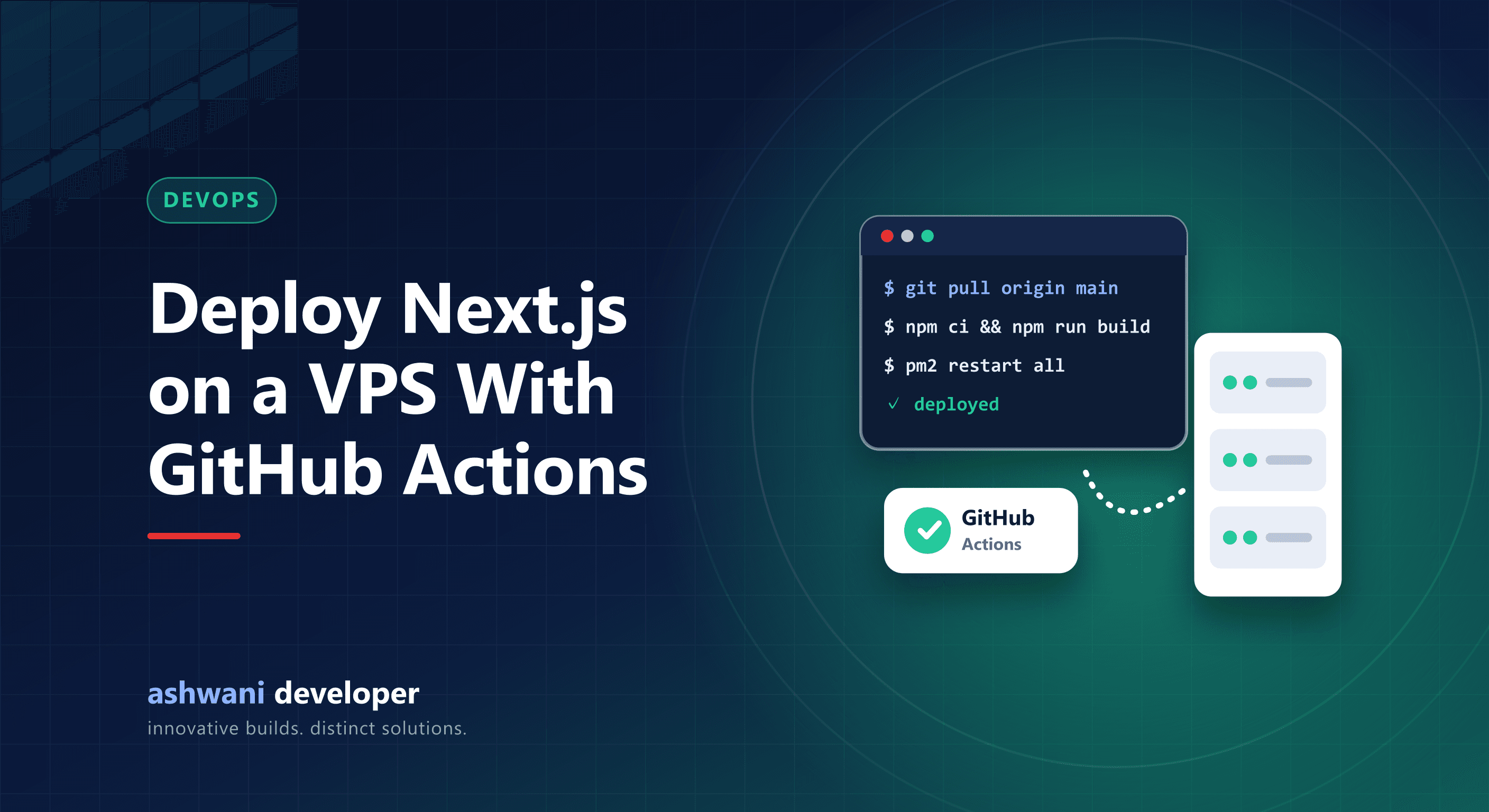
Quick answer: install Node.js, PM2, and Nginx on the VPS; run the Next.js production server and your API under PM2; put Nginx in front as a reverse proxy with HTTPS; then add a GitHub Actions workflow that connects over SSH on every push to pull, install, build, and restart.
This is the setup behind this website: a Next.js front end and a Node.js API on a single VPS, redeployed automatically whenever code is pushed to the main branch. It is affordable, fast, and fully under your control.
Architecture
- Nginx receives HTTPS traffic and forwards it to the right app.
- Next.js runs with
next starton one port, managed by PM2. - Node.js API runs on another port, also under PM2.
- MongoDB or another database runs locally or as a managed service.
- GitHub Actions deploys on every push.
Step 1: Prepare the server
- Create a non-root user with SSH key login, and disable password login.
- Enable a firewall allowing only SSH, HTTP, and HTTPS.
- Install Node.js using a version manager such as nvm, so you can pin versions.
- Install PM2 globally and Nginx from the system packages.
Step 2: Clone and configure the app
- Clone the repository into an app directory.
- Create environment files (
.env) directly on the server; never commit secrets. - Run
npm ciandnpm run buildonce manually to confirm it works.
Step 3: Run the apps with PM2
Define each process in an ecosystem.config.cjs file with its name, working directory, script, and environment such as NODE_ENV=production and the port. Start them with pm2 start ecosystem.config.cjs, then run pm2 save and pm2 startup so they restart after a reboot.
Step 4: Configure Nginx and HTTPS
- Create a server block for your domain that proxies requests to the Next.js port.
- Proxy an API path, or a subdomain, to the API port.
- Pass the correct headers (Host, X-Forwarded-For, X-Forwarded-Proto) and support WebSocket upgrades if needed.
- Issue a free TLS certificate with Certbot and enable automatic renewal.
- Redirect HTTP to HTTPS and pick one canonical hostname.
Step 5: Automate with GitHub Actions
Add the server host, user, and a dedicated deploy SSH private key as repository secrets. Then create a workflow triggered on pushes to main that uses an SSH action to run a script on the server:
git fetchand reset to the latestmain.- Install dependencies with
npm cifor the API and restart it with PM2. - Run any safe, idempotent data tasks, such as seeding new content.
- Install, build Next.js, and restart it with PM2.
- Run health checks with
curlagainst both apps and fail the job if they do not respond.
Add a concurrency group so two deploys never run at the same time.
Step 6: Make deployments safer
- Build before stopping: building first and restarting after keeps downtime short.
- Health checks catch broken releases immediately.
- Logs: use
pm2 logsand set up log rotation. - Backups: schedule database backups stored off the server.
- Pin Node.js versions so the server matches development.
VPS vs managed platforms
Managed platforms are convenient and scale automatically, but costs can grow with traffic and features. A VPS gives predictable costs and full control, in exchange for handling updates and security yourself. For many business sites and small SaaS products, a VPS with automated deploys is an excellent balance.
Going further
Containerising with Docker makes environments reproducible and simplifies moving servers; see CI/CD for small teams and scaling full-stack apps with CI/CD and Docker.
Want deployments that just work? Automated pipelines are part of every project on the website development service. Get in touch if your current deployment is manual or fragile.